Charging & power · Care & ideas
AV Cables and Adapters Guide: HDMI, Optical and USB-C
Match HDMI, optical, DisplayPort, VGA and USB-C cables to the right source, display, audio device or capture setup.
In this guide · Jump to a section
AV cables become confusing when the plugs look familiar but the signal path is wrong. An HDMI switch, HDMI splitter, capture card and USB-C video cable can all sit near a television, yet each performs a different job.
This guide helps you match the source port, display port and signal direction before you buy. It covers HDMI, DisplayPort, VGA, optical S/PDIF, USB-C video and the 3.5mm audio connection included with a listed Wii adapter.
Begin by writing down the exact ports on both devices. A cable only joins matching functions; a connector shape alone does not confirm that video, audio, charging or data will work in your setup.
Map the route from source to screen or sound
Every setup has a source, a destination and sometimes a converter between them. A game console, laptop or streaming device is the source. A television, monitor, projector, headphones or sound system is the destination. Draw the route before choosing an accessory.
Then identify direction. A DisplayPort-to-VGA converter changes a digital DisplayPort signal for an analogue VGA display. An HDMI capture card takes HDMI video into a computer for recording or streaming. It does not turn a computer’s USB port into an HDMI source for a television.
- Read the labels beside each port, not just the plug shape.
- Check whether you need one source or several sources.
- Confirm input and output direction on every adapter.
- Compare the required resolution with the listing’s stated support.
AV connection and signal-path chart
| Need | Correct path | Relevant listed product | Key check |
|---|---|---|---|
| Three HDMI sources on one display | Sources → HDMI switch → display | Three inputs, one output | Selects rather than duplicates |
| One HDMI source on two displays | Source → HDMI splitter → displays | One input, two outputs | Duplicates the source signal |
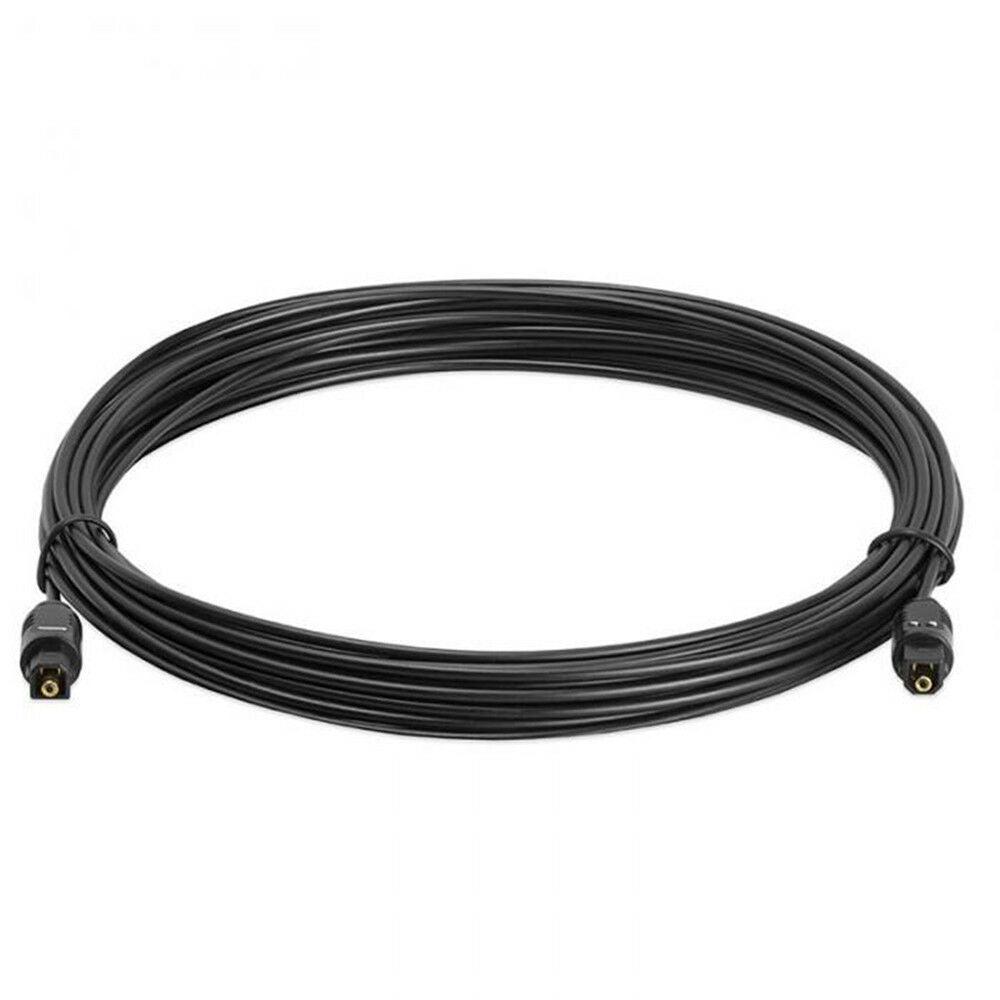
| Digital audio between optical ports | Optical S/PDIF source → optical cable → audio device | 2m or 5m optical lead | Match optical connectors |
| DisplayPort computer to VGA screen | DisplayPort source → DP-to-VGA adapter → VGA display | DP male to VGA female adapter | Digital-to-analogue conversion |
| USB-C computer to HDMI screen | USB-C with video support → USB-C-to-HDMI cable → display | 2m USB-C to HDMI cable | Check video capability of USB-C port |
| Console video into a computer | HDMI source → capture card → USB computer | USB 2.0 or USB 3.0 capture device | Capture is not display splitting |
Use this chart to isolate the role you need. If the route contains a format change, such as DisplayPort to VGA or Wii to HDMI, select a purpose-made converter instead of an ordinary cable with the wrong plugs.
Resolution, audio and power checks
Resolution support must cover the signal you plan to use. The listed HDMI switch mentions 4K Ultra HD and 1080p support, while one USB-C to HDMI cable lists support up to 3840 × 2160 at 30Hz. Check both the source and the display, because the final picture uses the shared capability.
Audio may travel in the same lead or through a separate path. Optical S/PDIF products are for digital audio. The Wii HDMI adapter lists a 3.5mm audio socket as well as HDMI audio. Use the connection your equipment actually provides; an optical port and a 3.5mm headphone socket are not interchangeable.
USB-C needs an extra capability check. A Type-C connector can carry charging, data or video depending on the device. For DisplayPort video, the USB-C to DP listing specifies compatible Thunderbolt 3 computers with DP Alt Mode. Consult your computer’s documentation before treating every USB-C port as a video output.
Installation habits that prevent common faults
Turn devices off before changing a cable route, especially when moving a monitor or receiver. Insert plugs squarely and do not force them. Check that the cable is fully seated, then power the display and select the correct input before changing software settings.
For optical leads, remove the tip protectors and avoid sharp bends. For HDMI or USB-C leads, avoid pulling by the connector when unplugging. A loose or strained connection can cause drop-outs that resemble a resolution issue.
When no image appears, simplify the route. Connect one source directly to one display with a known working lead. Once that works, add the switch, splitter, converter or capture device one item at a time. This method shows where the signal stops without random replacements.
AV cables, converters and related connections
OfficeCatch lists the following options for the stated connection paths. Verify the ports, direction and resolution on your own devices before selecting an item.
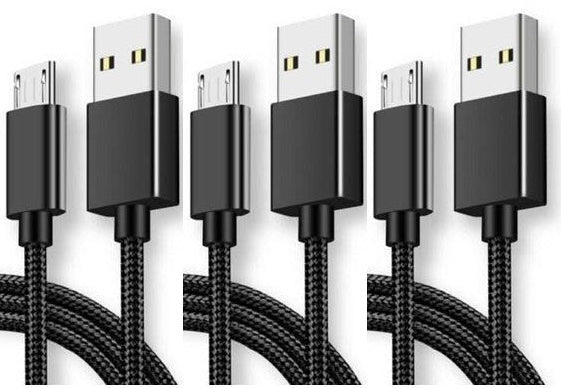
- one-metre Micro USB cable three-pack is intended for compatible Android and Samsung Galaxy devices.
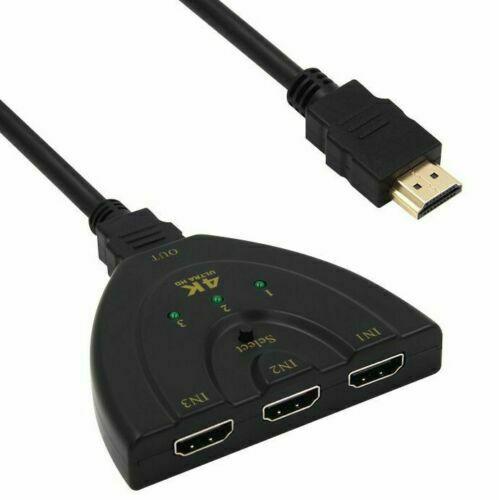
- three-way HDMI switch has three inputs and one output.
- five-metre optical S/PDIF cable is an optical digital-audio lead.
- DisplayPort-to-VGA converter converts DisplayPort signal to analogue VGA.
- USB 3.0 HDMI capture card is listed for 4K 60FPS game capture and streaming.
- HDMI-to-VGA monitor lead has HDMI and VGA connectors and a stated 1.8m length.
- one-in-two-out HDMI splitter duplicates one HDMI input to two outputs.
- USB 2.0 HDMI capture card states 4K input and 1080p output limits.
- two-metre optical audio cable is another S/PDIF optical lead option.
- Wii/Wii U to HDMI converter is designed to connect those consoles to HDMI displays.
- USB-C-to-PD Surface connector adapter requires a PD source that supports 15V charging.
- USB-C to DisplayPort cable is for compatible USB-C computers with DP Alt Mode.
- two-metre USB-C to HDMI cable lists support up to 4K at 30Hz.
- USB-C to HDMI 4K cable is listed for named Samsung phones and other compatible devices.
- retro HDMI game TV stick is listed for HDMI televisions, monitors and projectors.
- Wii HDMI adapter with 3.5mm audio includes an extra audio socket.
Label spare leads by function and length after testing them. A short note such as “optical soundbar” or “USB-C video” avoids reconnecting the wrong accessory during the next move or upgrade.
FAQs
What is the difference between an HDMI switch and an HDMI splitter?
An HDMI switch selects one source to send to one display. The three-way listing has three inputs and one output. An HDMI splitter takes one source and sends it to more than one display; the listed splitter has one input and two outputs. Check the signal direction before buying.
Can I connect a USB-C laptop to a DisplayPort monitor?
A USB-C to DisplayPort cable can work when the computer supports DisplayPort Alt Mode. The product listing names Thunderbolt 3 computers with DP Alt Mode as examples. Check your laptop’s specifications, as a USB-C socket used only for charging or basic data may not provide video output.
When should I use an optical audio cable?
Use an optical S/PDIF cable when both audio devices have matching optical ports and you need a digital audio connection. Check the port shape and remove any protective caps before fitting the plug. The cable must not be sharply bent, because optical fibre connectors and leads need careful handling.
Will an HDMI to VGA cable work with every HDMI device?
No. HDMI and VGA use different signal types, so the product’s stated direction and supported resolution matter. Check that the adapter is intended for your source device and your VGA display. Confirm connector gender at both ends, then test at a supported resolution before troubleshooting the screen.
Products linked in this guide
-
3-Pack Fast Charging Micro USB 2.0 Cable Cord – 1M (Black) for Android & Samsung Galaxy $9.99 AUD View current product details
-
4K Ultra HD 3 Way HDMI Switch Box Splitter 1080P HDTV Auto 3 Port IN 1 OUT Cable $14.99 AUD View current product details
-
5M | Ultra-Premium Optical Fiber Digital Audio Cable Lead Cord To slink Black S/PDIF $10.99 AUD View current product details
Check the product page for current specifications, compatibility and availability.